How to Resize a Photo to Passport Size Without Photoshop
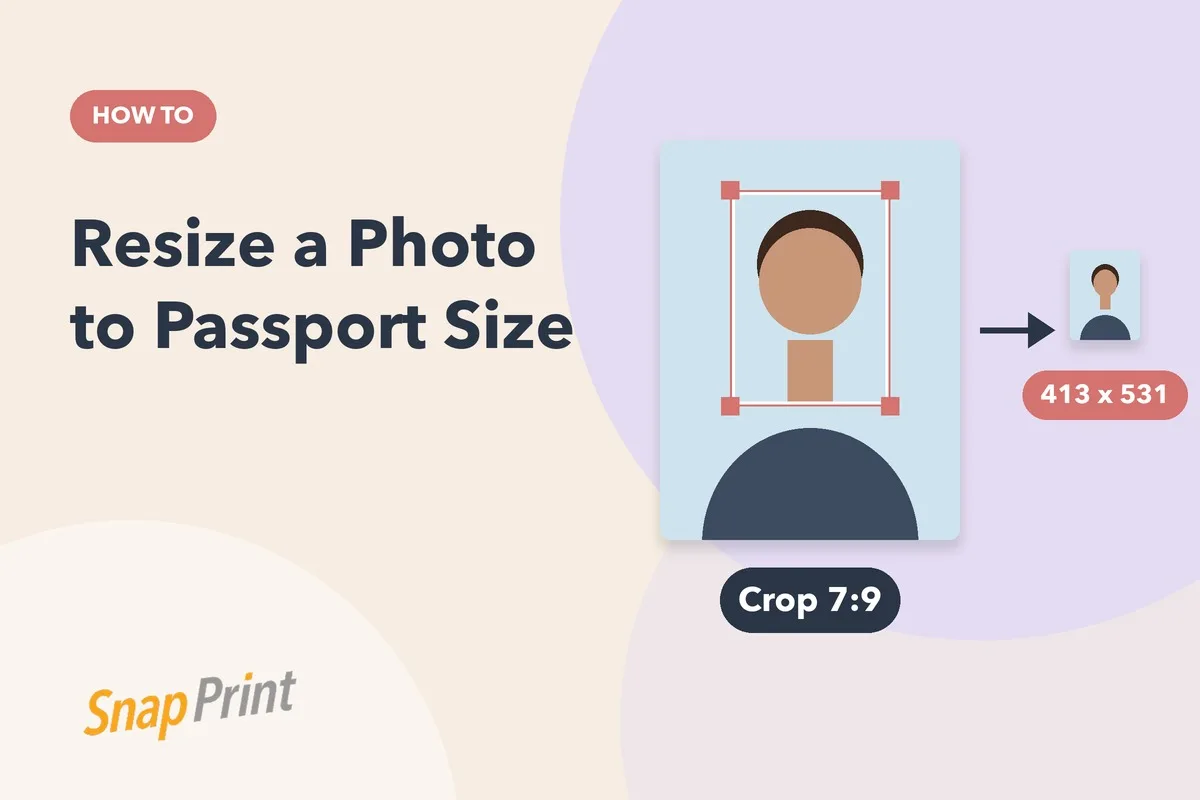
You do not need Photoshop to get a photo into passport size. A 35 x 45 mm photo has a width to height ratio of 7:9, which is 413 x 531 pixels at 300 DPI. Here is a simple way to prepare it.
Step by step
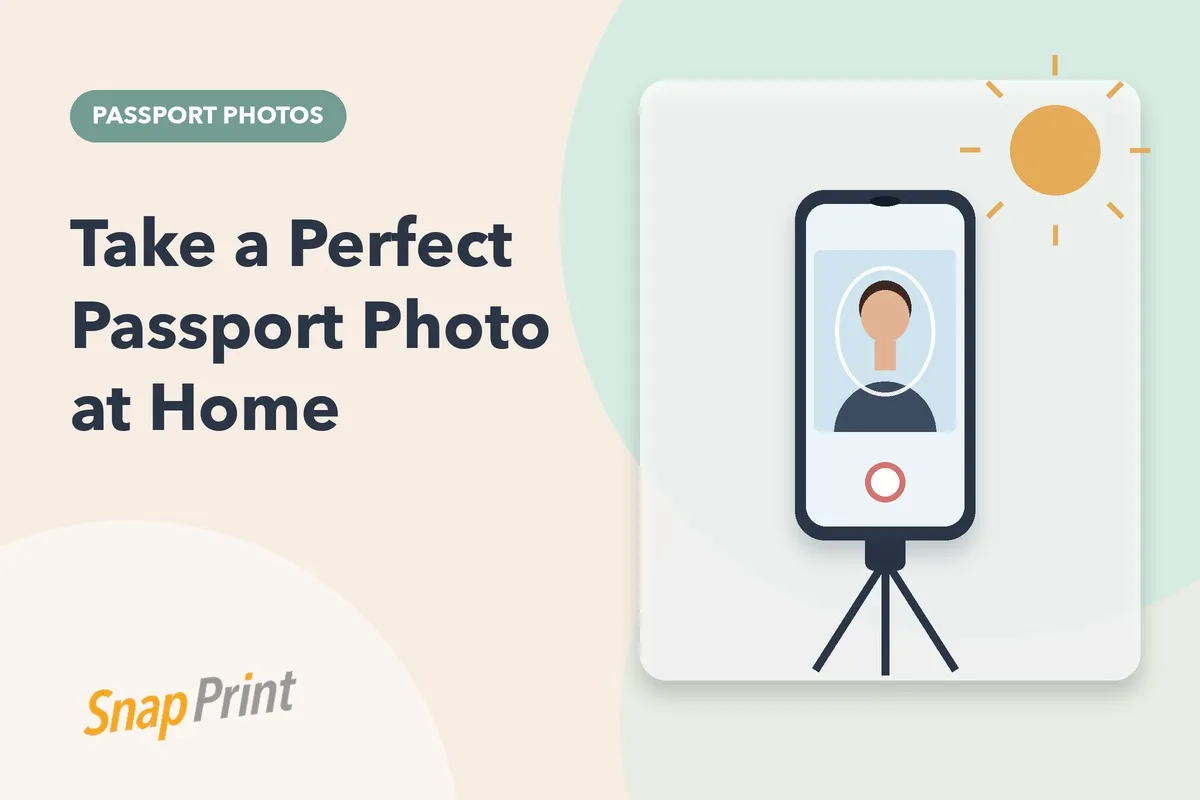
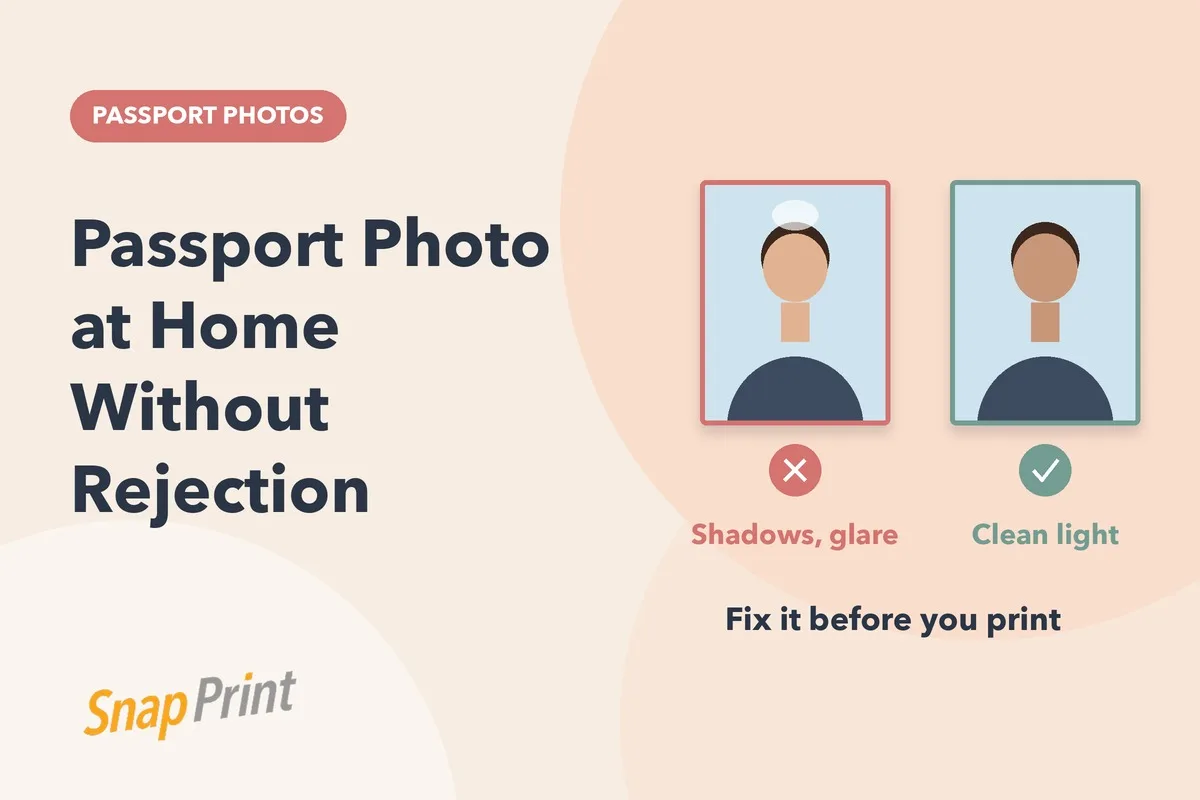
- Start with a good photo. Front facing, eyes open, plain background, even light, taken from about a metre away.
- Open it in your phone gallery or any photo editor and choose crop.
- Set a 7:9 ratio if the app offers custom ratios. If not, crop so the photo is a little taller than it is wide.
- Centre the face. Leave a little space above the head and include the top of the shoulders.
- Do not stretch the photo. Cropping is fine. Squeezing or stretching makes the face look wrong and can get it rejected.
- Save the highest quality version and upload it.
Pixel sizes for common photos at 300 DPI
| Size | Pixels |
|---|---|
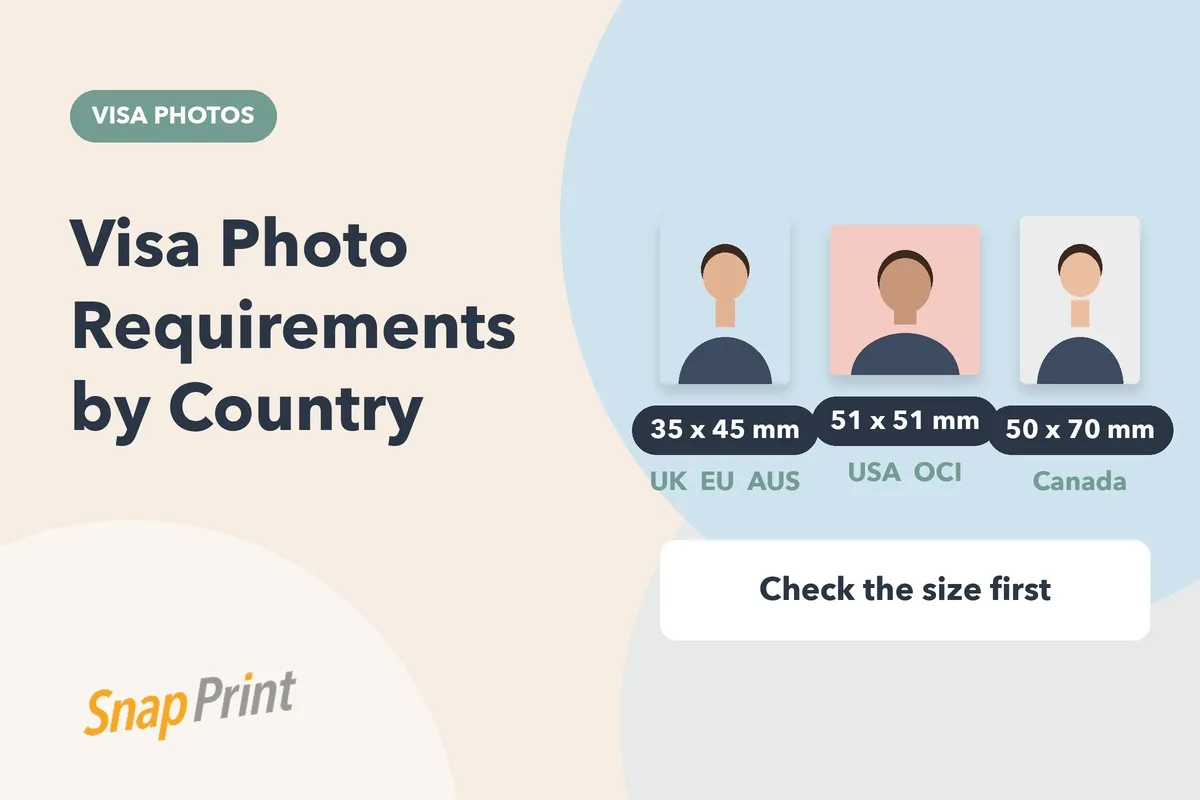
| 35 x 45 mm (India passport) | 413 x 531 |
| 51 x 51 mm (2 x 2 inch) | 600 x 600 |
| 50 x 70 mm (Canada) | 591 x 827 |
| 25 x 35 mm (PAN card) | 295 x 413 |
The easier way
You can skip the cropping. Upload your photo to Snap Print, choose the size, and we crop, edit and print it for you. Our team checks the resolution before printing, so you do not need to resize anything yourself.
Frequently asked questions
What DPI should a passport photo be?
300 DPI is the standard for printing. Higher is fine.
Can I print a passport photo from a selfie?
Yes, if it is sharp, evenly lit and taken straight on. Wide angle selfies taken at arm’s length can distort the face.
Need a specific size? See our pages for US visa photos, Schengen visa photos and OCI card photos.